
Are you looking to convert a bunch of FLAC files into WAV format without compromising on sound quality? Whether you're a music aficionado needing high-resolution audio for editing or just prefer WAV’s compatibility with various devices and software, AudioKies is a superb choice. In this blog post, I'll walk you through the steps to efficiently bulk convert FLAC files to WAV on both Windows and Mac using AudioKies. Let's dive in!
How to Convert Flac to WAV Using AudioKies
AudioKies is a versatile and powerful tool designed to meet all your audio conversion needs. AudioKies offers a user-friendly interface and a wide range of features to simplify the process. Supporting a multitude of formats, including MP3, WAV, FLAC, AAC, and more, this software ensures high-quality output while providing options for bitrate, sample rate, and audio channels. Perfect for both beginners and advanced users, AudioKies is an essential tool for anyone looking to manage and optimize their audio files with ease.
Step 1.Download and Install AudioKies
Click the below button to download AudioKies on your PC or Mac. Once downloaded, open the installer and follow the on-screen instructions to install AudioKies on your computer.


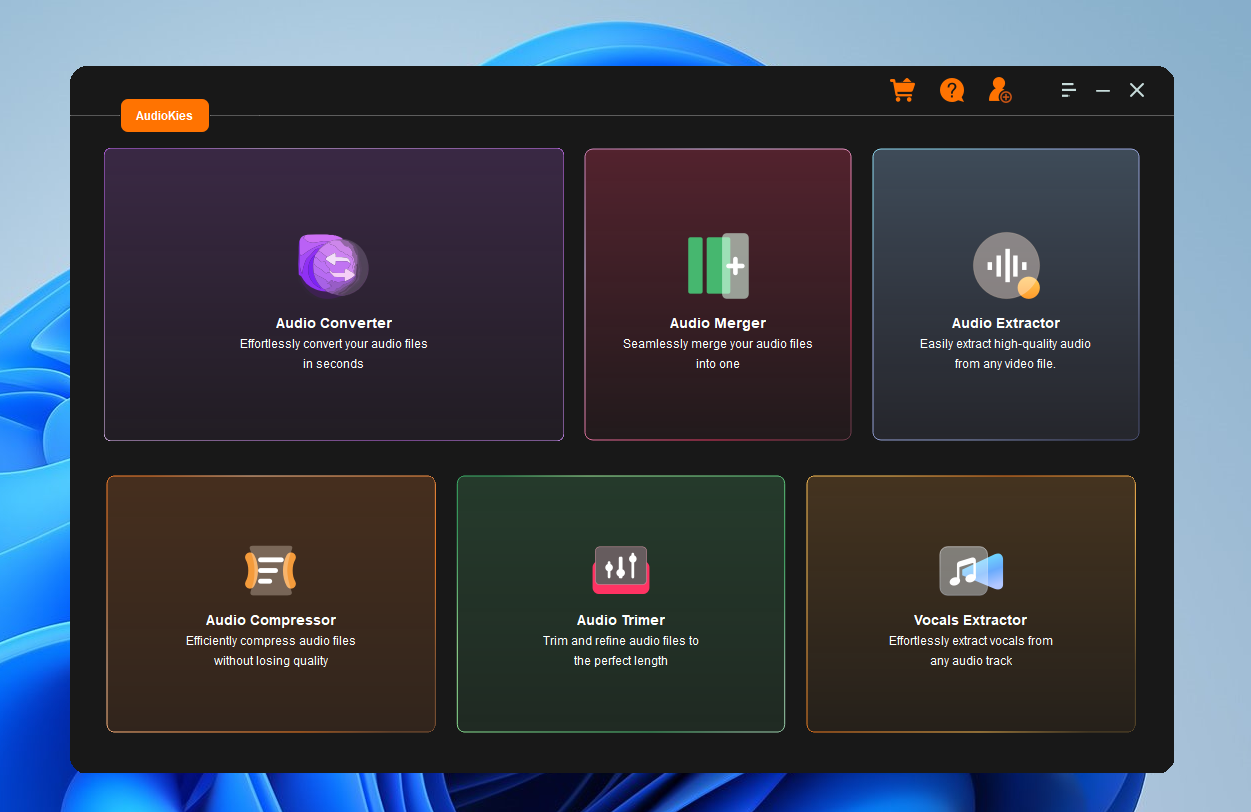
Step 2: Add Flac Files to the Converter
After installation, launch AudioKies by double-clicking the desktop icon. In the main interface of AudioKies, click on the "Add File" button. A file browser window will open. Navigate to the location of your Flac files, select them, and click "Open" to add them to the converter.
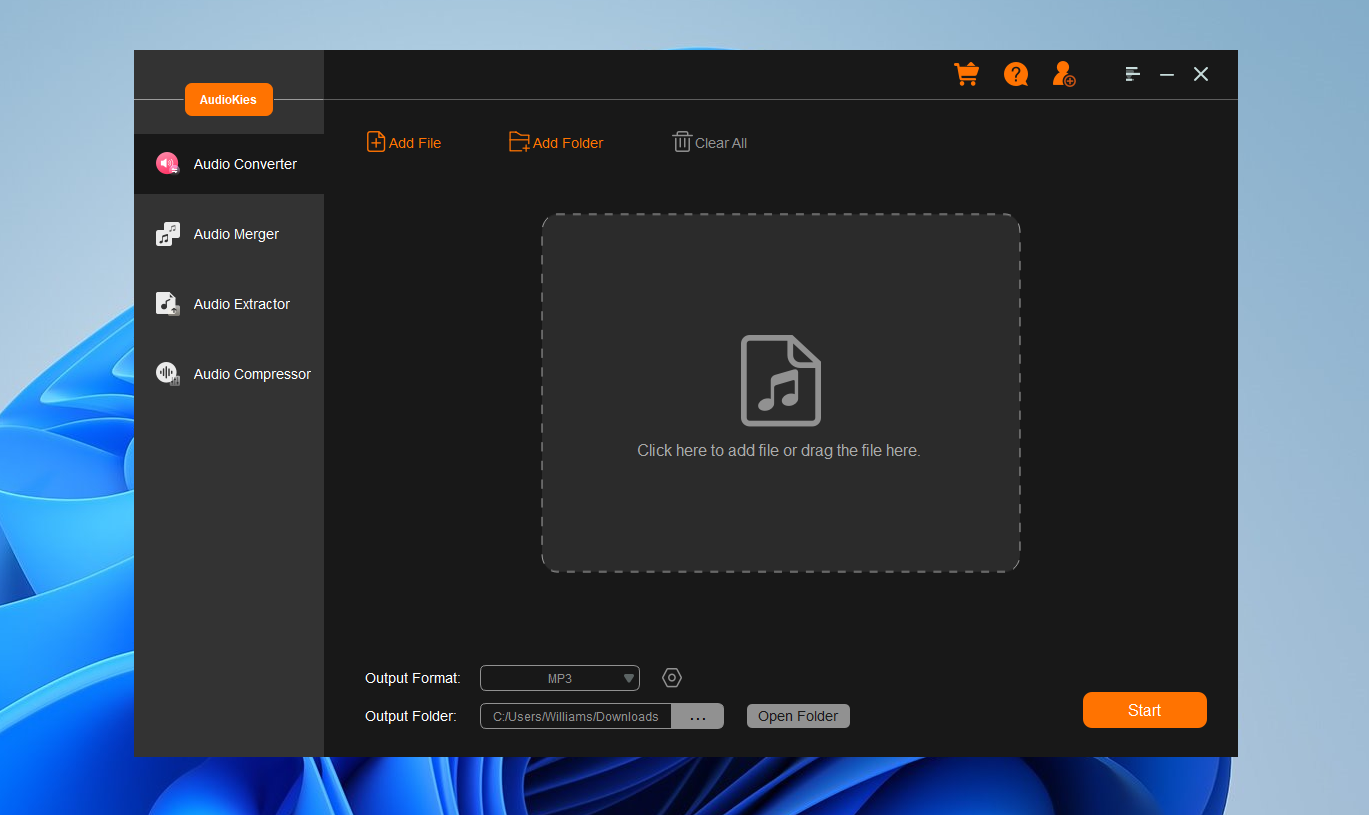
Step 3: Select WAV as the Output Format
Once your Flac files are added, click on the "Output Format" dropdown menu at the bottom of the window. In the profile list, select "WAV" as the desired output format.
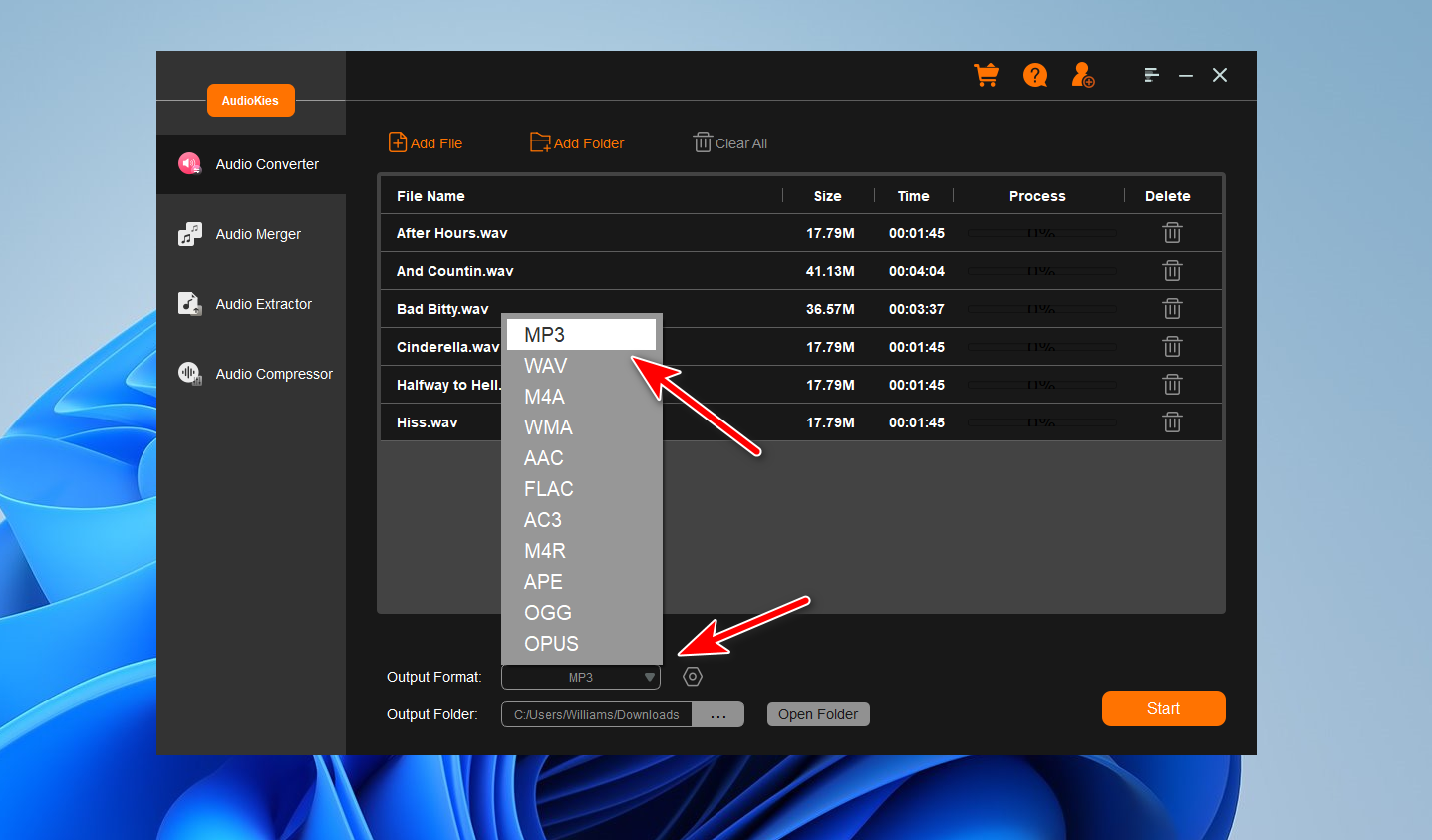
Step 4. Start Converting Flac to WAV
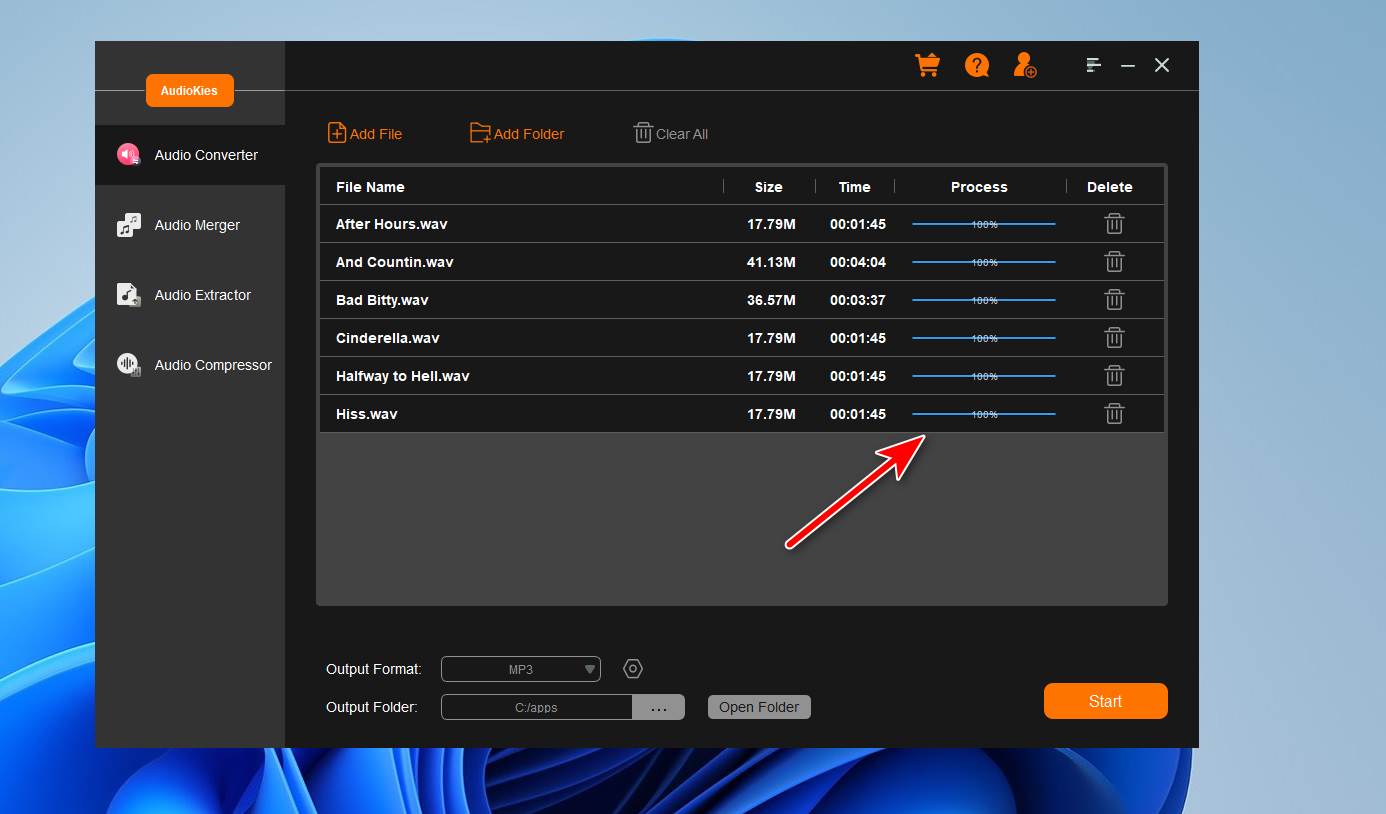
Click the "Output Folder" button and choose a folder where you want to save the converted Flac files and click "OK." Once all settings are configured, click the "Start" button to start the conversion process. AudioKies will begin converting your Flac files to WAV. You can monitor the progress in the conversion window.
Summary
By following the steps outlined in this guide, you can easily convert your Flac files to WAV using AudioKies. This powerful tool simplifies the conversion process, ensuring that your audio files maintain high quality while becoming more manageable in size. Whether you're looking to save space on your device or ensure compatibility across different platforms, converting your Flac files to WAV is a practical solution. We hope this tutorial has been helpful, and you're now ready to enjoy your audio files in their new format.